Managing Investment Details for a Company
Last updated: September 29, 2026
Use the Investment Details page to record financing activity and keep ownership data accurate over time.
This article explains how to add a new financing round, record related securities, and use other event types available on the Investment Details page.
Go to the Investment Details Page
To manage a company’s investment information, first open that company’s Investment Details page.
From there, you can add financing rounds and other events that affect ownership, valuation, or exit outcomes.
Add a New Financing Round
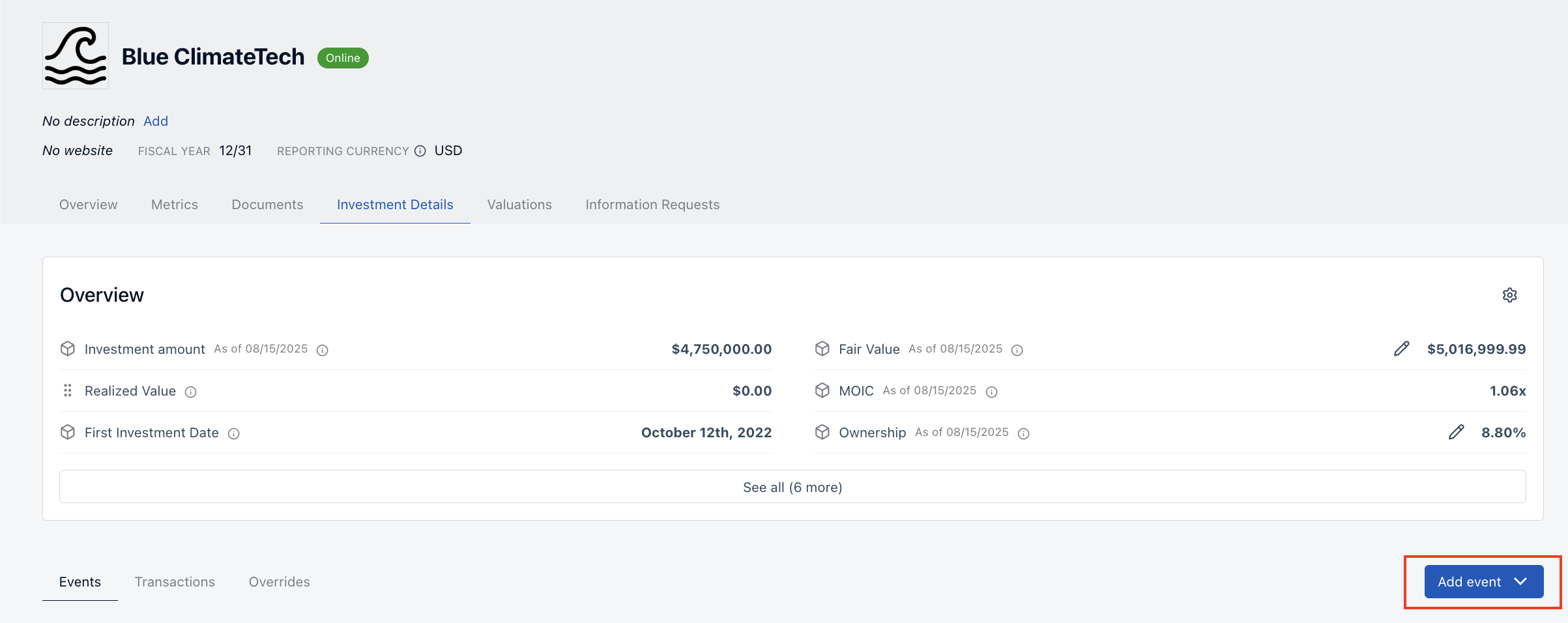
To record a new round of financing:
Click Add Event.
Select Add Financing.
Enter the round details, including:
Round Name
Close Date
Fully Diluted Share Count
Round Size
Pre-Money Valuation
Track Liquidation Preferences
If you would like to track liquidation preferences for the round:
Toggle from Financing to Preferences.
Turn on Track liquidation preferences for this round.
Enter the applicable terms, including:
Preference Multiple
Participation Type
Seniority Position
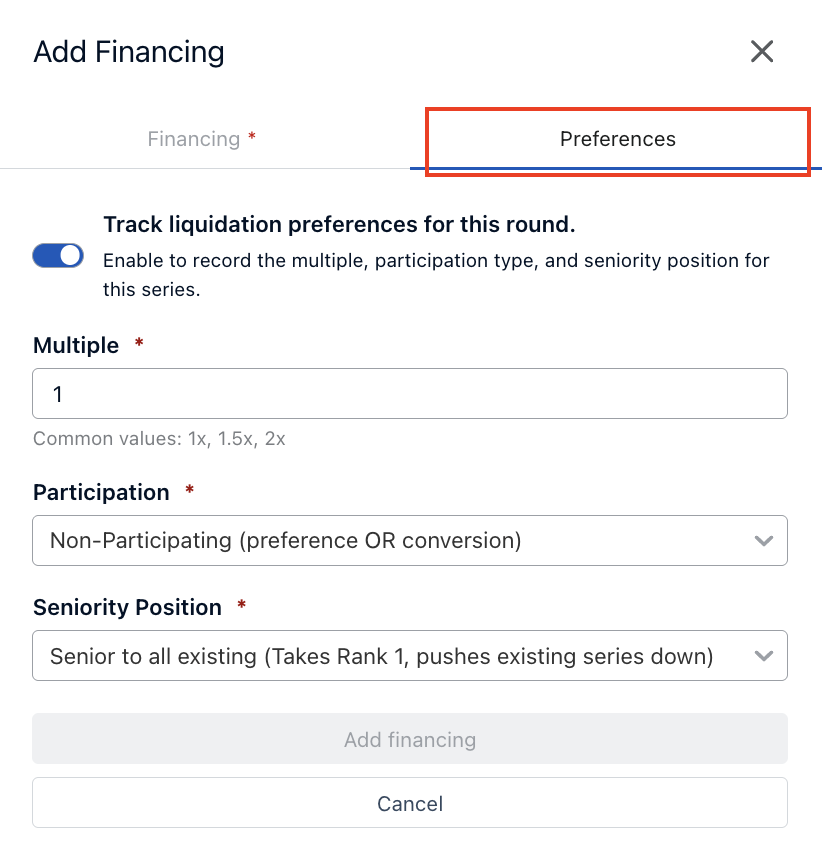
Tracking liquidation preferences helps ensure the round reflects the economic rights associated with that series and can be used in downstream analyses and scenario modeling.
Add Securities to the Round
After creating the financing round, you can add the relevant securities for your investment.
Choose the appropriate option to record the investment type:
Add Share Class for equity holdings
Add Warrant for warrant holdings
Add Convertibles for convertible instruments
Add Certificates for Equity Investments
If you add a share class for an equity investment, click Add Certificate to record the specific investment details associated with that holding.
Record Additional Rounds
Repeat this process for each financing round your firm participates in.
We also recommend recording subsequent financing rounds even if your firm did not participate. Doing so helps keep your Market Cap, Fair Value, and Ownership calculations accurate as the company raises additional capital over time.
Record a Preferred-to-Common Reclassification
Investment Details does not currently have a dedicated event for reclassifying preferred shares into common shares. To show the current holding while preserving the historical preferred financing round, remove the existing preferred holding or holdings and add the replacement Common holding or holdings after the reclassification.
Do not simply edit the old preferred share class to Common. Editing it relabels the historical investment instead of clearly showing the reclassification.
Use a sale transaction only when an actual sale occurred. Do not use a sale to imply that shares were sold for cash solely because they were reclassified.
This guidance is separate from the Advanced Investment Details Importer support for Notes or SAFEs converting to equity; that documented conversion support does not describe preferred-equity-to-common reclassification.
Record Other Event Types
The Add Event button can also be used to record other changes, including:
Dilution
Cryptocurrency holdings
Acquisition
Public Exit
These event types help maintain a complete and current view of the company’s investment history.
Customize the Overview Pane
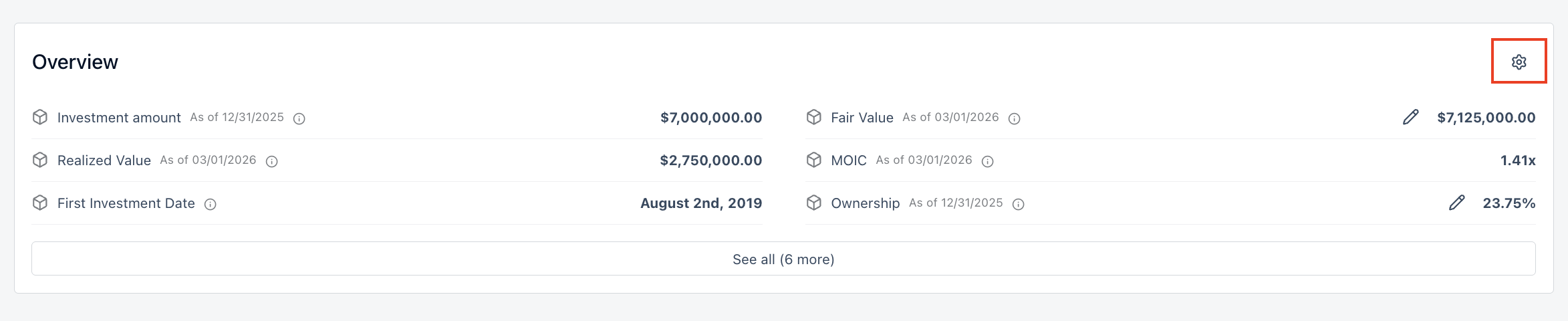
Each company’s Investment Details page includes an Overview pane that gives your team quick access to the information that matters most.
To customize it, click the gear icon and choose which fields to display. You can include both performance metrics and custom columns from the Portfolio dashboard, so the pane reflects the data most relevant to your workflow.
Available performance metrics include Fair Value, Realized Value, MOIC, First Investment Date, Ownership, Latest Post-Money Valuation, and Gross IRR. These metrics are calculated from the company’s investment details. In some cases, you can manually override a value by clicking the pencil icon in the Overview pane.
The custom columns available in the Overview pane are the same ones used in the Portfolio tab. To add a new custom column, create it from the Portfolio tab first, then add it to the Overview pane.
Need further assistance? Feel free to reach out to support@standardmetrics.io.